How to Add a Video to Google Slides (YouTube or MP4, 2026)
How to add a video to Google Slides: Insert → Video, paste a YouTube link or pick an MP4 from Drive, then set start and end times. Tested, with screenshots.
 Simone MatthewContent & video creator at Tube Snip· · 6 min read
How to add a video to Google Slides: click the slide, open Insert → Video, paste a YouTube link (or pick a file from Google Drive), and click Insert. Then use Format options to choose when it plays and to set a start and end time, so only the part you need plays.
That's the quick version. Below are the exact steps with screenshots from our own test, the playback settings that matter, what to do when a YouTube video won't play in your slides, and how to use an MP4 file or music instead.
Two ways to put a video in Google Slides
| YouTube video | MP4 file from Google Drive | |
|---|---|---|
| Where it comes from | Any public YouTube video that allows embedding | A video file you uploaded to Google Drive |
| Ads | Can show YouTube ads | No ads |
| Works where YouTube is blocked (some schools and offices) | No | Yes |
| Plays if the owner blocks embedding | No | Yes |
| Best quality | Whatever YouTube streams | Up to 1080p (Drive's playback limit) |
Start with YouTube: it's the fastest. Switch to a Drive file when YouTube is blocked on the network you'll present on, when the video refuses to play inside slides, or when you don't want an ad before your clip.
How to add a YouTube video to Google Slides, step by step
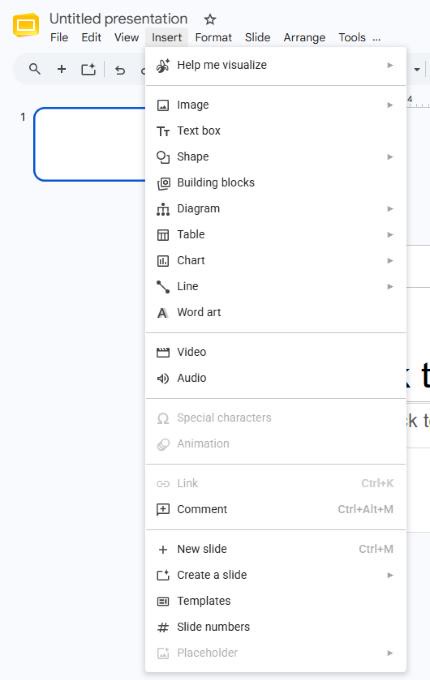
Open Insert → Video
Open your presentation and click the slide where the video should go. In the menu bar, click Insert, then Video.
Paste the YouTube link and click Insert
The Insert video box opens on the YouTube tab. Paste the video's link into "Search all of YouTube or paste URL" and press Enter. Click the video in the results, then click Insert.
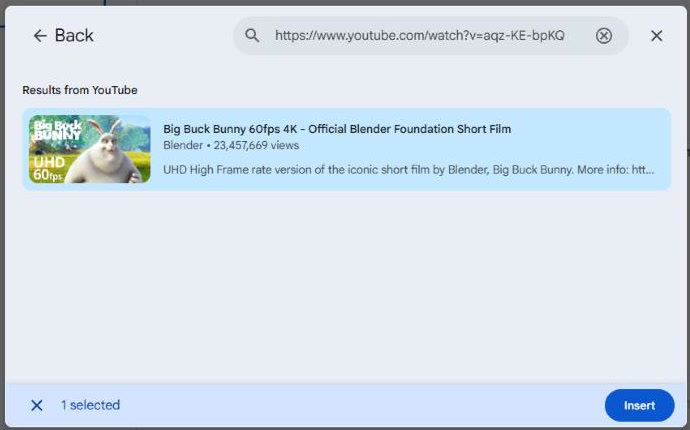
You can also type words to search YouTube from this box, but pasting the link is safer: you get exactly the video you checked.
Choose when it plays, and set start and end times
As soon as the video lands on the slide, the Format options panel opens on the right. Under Video playback you'll find:
- Play (on click), Play (automatically) or Play (manual). On click starts the video when you advance the slide; automatically plays it as soon as the slide appears; manual plays it only when you click the video itself.
- Start at and End at. Type a time, or play the preview and click Use current time.
- Mute audio, for a silent background clip.
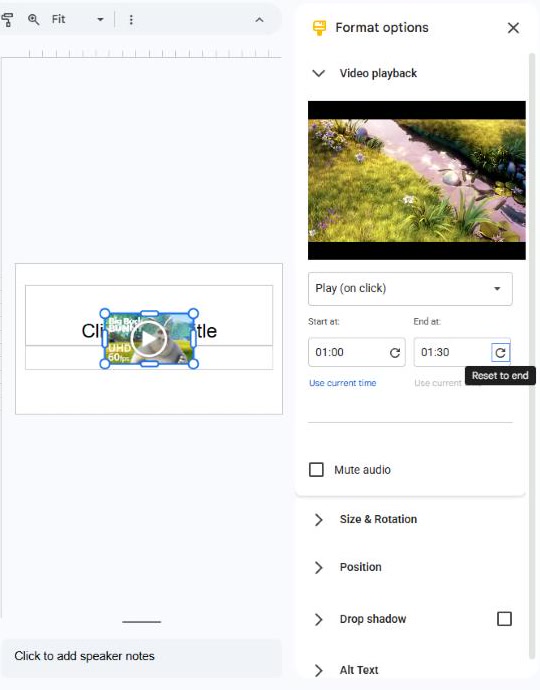
Resize it and test in Slideshow
Drag the corners of the video to make it bigger; hold Shift to keep its shape. Then click Slideshow and play the slide once before you present, on the same computer and network you'll use on the day.
If you'll present from someone else's account, click Share and give them access: Google's help page notes that the presenter needs permission to play videos from Drive.
How to add an MP4 video to Google Slides (from Google Drive)
Google Slides doesn't take a video straight from your computer: the file has to be in Google Drive first.
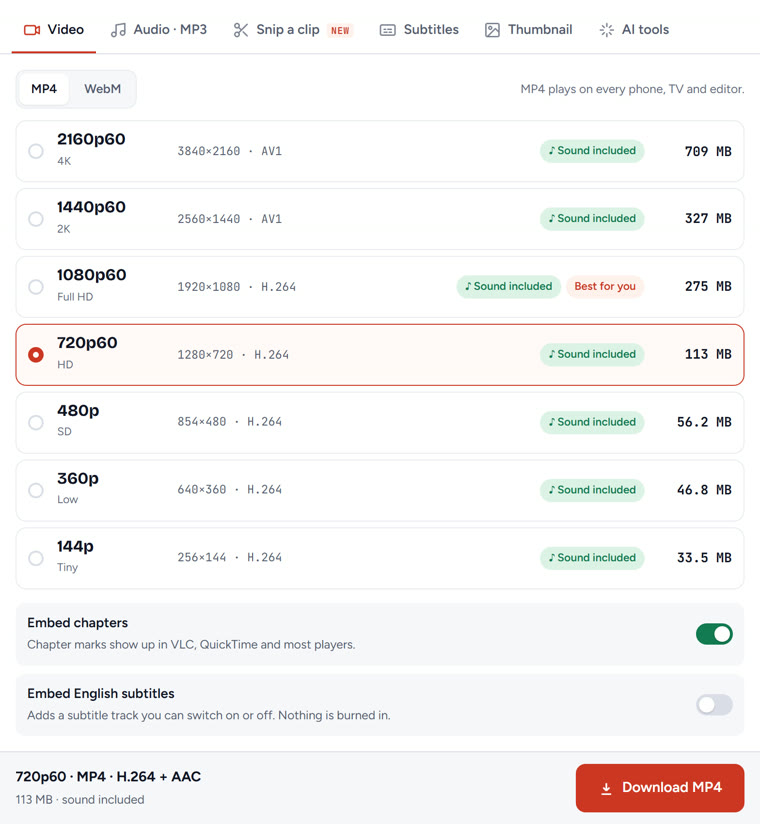
- Get the MP4. If it's your own video, export it as MP4. If it's a YouTube video you're allowed to use (yours, Creative Commons, or with the creator's OK), you can save it with the Tube Snip YouTube video downloader. Pick MP4 at 1080p or lower: Drive plays videos up to 1920 × 1080, so a 4K file is just a bigger upload. Need only one scene? Cut it with the YouTube clip cutter and upload a few seconds instead of the whole video.
- Upload it to Google Drive. Open drive.google.com, click New → File upload, and wait until the upload finishes.
- Insert it. In Slides, click Insert → Video, open the Google Drive tab, search for the file (the box says "Search in Drive or paste URL") and click Insert.
- Set playback in Format options, exactly as in Step 3.
What video format does Google Slides support?
Slides plays videos from YouTube or from Google Drive. For Drive files, Google lists these video types:
| Format | Notes |
|---|---|
| MP4, MOV, 3GPP | H.264 or MPEG-4 video with AAC sound. MP4 with H.264 is the safest choice. |
| WebM | VP8 video with Vorbis sound |
| AVI, MPEG-PS, WMV, FLV, MTS, OGG | Supported, but Google warns not all video types work on all devices |
Drive plays videos at up to 1920 × 1080. Bigger files upload fine but won't look sharper in your slides.
How to add music from YouTube to Google Slides
Slides inserts sound with Insert → Audio, and the sound file must be in Google Drive as MP3 or WAV. To use music from YouTube that you're allowed to use, such as your own track or free music from the YouTube Audio Library:
- Save it as MP3 with the YouTube to MP3 converter.
- Upload the MP3 to Google Drive.
- In Slides, click Insert → Audio and choose the file.
Our guide on how to download music from YouTube covers the legal sources and the best MP3 settings.
Can you loop or autoplay a video in Google Slides?
Autoplay: yes. In Format options, choose Play (automatically). The video starts as soon as the slide appears.
Loop: not with a switch. In our test, the video playback panel had Play, Start at, End at and Mute audio, and no loop option. If you need a clip to repeat, for example on a waiting screen, use an MP4 that already repeats the clip a few times, or set the slideshow itself to loop from the Slideshow options.
Can you add a video to Google Slides on a phone or iPad?
Google's help page describes inserting videos on a computer. The simplest route is to add the video on a computer; it then plays when you open the presentation on your phone or iPad. To use a video from your phone's camera roll, upload it to Google Drive first, then insert it from the Google Drive tab on a computer.
Troubleshooting: when the video won't play in Google Slides
| What you see | Why | Fix |
|---|---|---|
| "Unable to play video. Error 150" | The video's owner doesn't allow it to play inside other sites | Use another video, or a Drive copy if you have permission |
| "Could not load YouTube player" | YouTube is blocked on this network, or the browser is blocking it | Try another network or browser, or use an MP4 from Drive |
| The Drive video says you need access | The presenter can't open the file | Share the presentation and the video with them |
| The video starts from the beginning | Start at is still 00:00 | Set Start at in Format options |
| An ad plays before your clip | It's a YouTube video | Use an MP4 from Drive (if you're allowed to) |
| The video plays too early | It's set to Play (automatically) | Switch to Play (on click) |
| There's no Insert menu | You only have view or comment access | Ask the owner for edit access |
Is it legal to put a YouTube video in Google Slides?
Embedding a public YouTube video through Insert → Video uses YouTube's own player, so the video plays from YouTube with its owner's settings. That's the safest way to show someone else's video.
Downloading the file is different. YouTube's terms only allow it when YouTube shows a download option or the owner gives permission. Use the Drive method for your own videos, Creative Commons videos (credit the creator on the slide), or videos you have permission for.
What we'd do
Paste the YouTube link with Insert → Video, set Start at and End at so only the part you need plays, and test it once in Slideshow on the same network. Keep an MP4 copy in Drive as a backup for any video you're allowed to save, in case YouTube is blocked where you present.
Questions
How do I add a YouTube video to Google Slides?
Click the slide, open Insert → Video, paste the YouTube link in the YouTube tab, select the video and click Insert. Then set when it plays and its start and end times in Format options.
How do I add an MP4 video to Google Slides?
Upload the MP4 to Google Drive first. Then in Slides click Insert → Video, open the Google Drive tab, find the file and click Insert. Slides does not insert a video straight from your computer.
What video format does Google Slides support?
YouTube videos and video files in Google Drive. Drive plays MP4, MOV and 3GPP (H.264 with AAC), WebM, AVI, MPEG-PS, WMV, FLV, MTS and OGG; MP4 with H.264 is the safest. Playback goes up to 1920 × 1080.
Can I play only part of a video in Google Slides?
Yes. Select the video, open Format options and set Start at and End at under Video playback. Only that part plays during the slideshow.
Can you loop a video in Google Slides?
There is no loop switch for videos; in our test the playback panel only had Play, Start at, End at and Mute audio. Autoplay is available as Play (automatically).
Why does my YouTube video say error 150 in Google Slides?
Error 150 means the video owner does not allow it to play inside other sites. Pick another video, or use an MP4 copy in Google Drive if you have permission to use the video.