How to Edit YouTube Videos: Before and After Posting
How to edit YouTube videos: the YouTube Studio editor after posting (trim, cut, blur, end screens, limits), a simple workflow before upload, and our real test.
 Simone MatthewContent & video creator at Tube Snip· · 6 min read
How to edit YouTube videos comes down to timing. Before you upload, you edit the file in any video editor: cut, add captions, fix the sound, export. After you post, YouTube Studio's built-in editor lets you trim, cut out sections, blur faces and add an end screen, and the video keeps its URL, views and comments.
This guide covers both. You'll get the exact YouTube Studio steps and limits, the editing workflow we used on our own Short, and a test where we trimmed a 10-minute video down to 55 seconds.
Can you edit a YouTube video after posting?
Yes, but only some things. YouTube Studio's editor can:
- Trim the start or end.
- Cut a section out of the middle.
- Blur faces or any area you choose.
- Add an audio track from YouTube's library.
- Add an end screen and info cards.
What it can't do is replace the video file. If you want new footage, a different intro or new music mixed under your voice, you need to edit the original file and upload it again. That creates a new video with a new URL and zero views.
The upside of editing in Studio: you don't re-upload, so the URL, view count and comments stay the same.
How to edit a YouTube video after posting (YouTube Studio)
- Sign in to YouTube Studio on a computer.
- Open Content and click the video.
- Select Editor in the left menu.
- To shorten the start or end, choose Trim & cut, drag the sides of the blue box over the part you want to keep, then click Save.
- To remove something in the middle, choose Trim & cut, then New cut. Drag the red box over the part to remove, confirm with the check mark, and click Save.
You can type exact times into the boxes, which is easier than dragging when you need to cut at 4:31.5 precisely. Use Preview before saving.
Limits you'll run into
- Trimming works on videos shorter than six hours.
- If an unedited video has more than 100,000 views, you may not be able to save changes, except blurring faces. This limit doesn't apply to channels in the YouTube Partner Program.
- You can't swap the video file itself. Anything beyond trims, cuts, blur, audio and end screens means editing the original and uploading again.
Blur faces or objects in a posted video
Choose Blur in the Studio editor. There are two options:
- Face blur: YouTube finds faces, you pick which ones to blur, then click Apply.
- Custom blur: drag a rectangle or oval over anything, like a license plate or a screen with private info. You can set when the blur starts and ends, and let it track a moving object.
Add an end screen and cards
End screens are the clickable boxes in the last seconds of a video. YouTube's rules:
- They can cover the last 5–20 seconds.
- The video must be at least 25 seconds long.
- You can add up to four elements on a standard 16:9 video.
- They don't show on videos set as made for kids.
Plan for this while editing: leave 10–20 seconds at the end where nothing important happens on screen, so the end screen doesn't cover your content.
How to edit videos for YouTube before uploading
This is where most of the real editing happens. You need a desktop or phone editor. DaVinci Resolve, CapCut and iMovie all have free versions. The steps are the same in every app:
- Rough cut. Put the clips in order and delete everything you won't use.
- Tighten. Remove pauses, "ums" and repeated takes. This is the step that changes how a video feels.
- Add visual help. Captions, zooms on the important moment, a few on-screen words.
- Fix the sound. Clear voice matters more than the picture. Keep music well under the voice.
- Color and brightness. Small fixes only; most phone footage is fine.
- Export at the size of your footage: 1920 × 1080 or 3840 × 2160 for normal videos, 1080 × 1920 for Shorts.
What editing our own Short involved
We keep notes on every Short we publish. For our 21.3-second Short posted on October 16, 2026, the final edit had:
- 17 cuts, almost all of them removing pauses.
- Punch-in zooms on key words.
- Captions with the key words highlighted.
- A small picture-in-picture showing the app.
- A progress bar, sound effects, and background music lowered under the voice.
- The sound leveled to −14 LUFS so it isn't quieter or louder than other videos in the feed.
That Short reached 1,033 views in six days with a 24-second average view, longer than the video itself, so people rewatched it. Seventeen cuts in 21 seconds sounds like a lot. It's what removing every pause looks like.
Our test: trimming a video without an editor app
Sometimes you don't need a full editor. You just need one part of a long video, for example to reuse a moment from your own stream. We tested that on October 22, 2026 with Big Buck Bunny (Blender Foundation, open licence, 10:35) in our YouTube clip cutter:
- Pasted the YouTube link.
- Set start 0:52 and end 1:47.
- Picked Original as the output, so the clip keeps its 16:9 shape.
- Saved it.
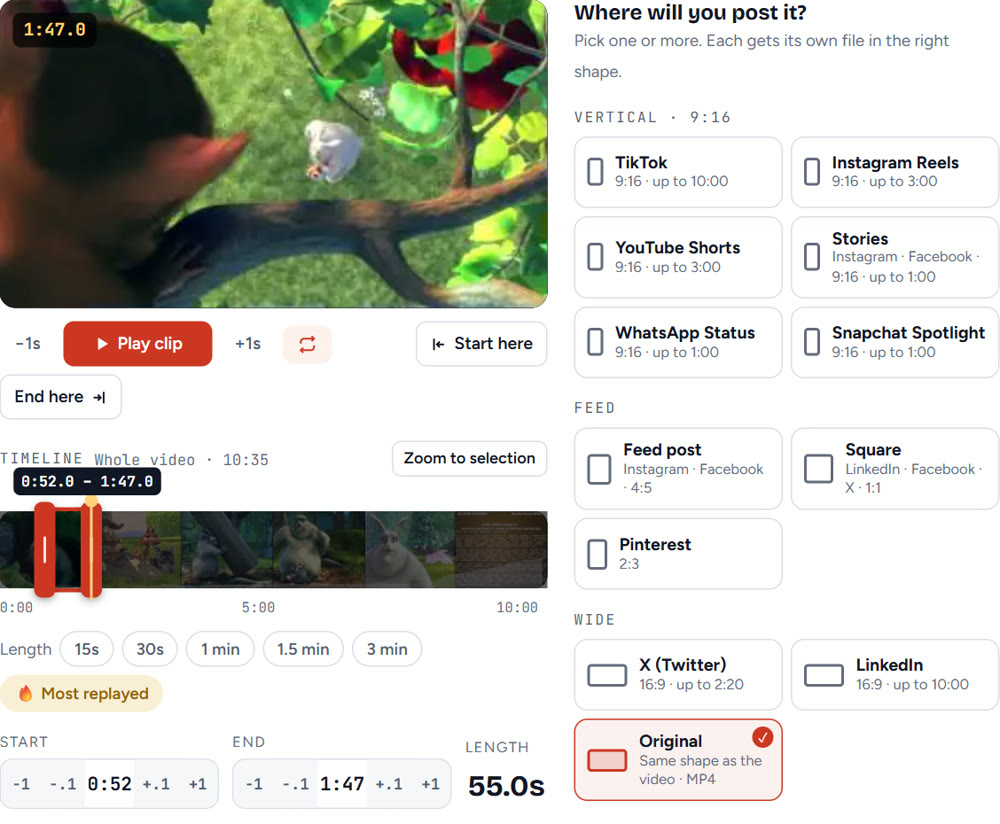
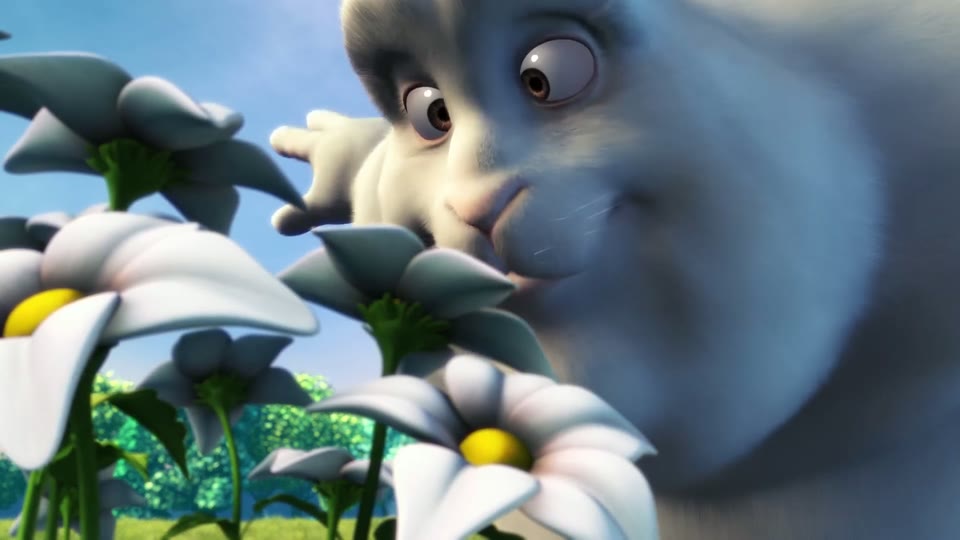
That's a trim, not an edit with captions and music. But for "keep 0:52 to 1:47 and lose the rest", it's quicker than opening an editor and exporting.
How long does it take to edit a YouTube video?
It depends almost entirely on how many cuts you make. A straight trim like our test above takes a couple of minutes. A talking video where you remove every pause, add captions and zooms takes much longer, because each cut is a decision.
Two habits save the most time:
- Record cleaner. Pause, then repeat a sentence you fumbled. The pause makes the bad take easy to find.
- Edit in passes. Cut first, then captions, then sound. Switching tasks back and forth is slow.
How to edit YouTube videos on iPhone
For a quick trim before upload, the iPhone Photos app can shorten a clip: open it, tap Edit, and drag the ends of the timeline. For cuts in the middle, captions and music, use an editing app.
For Shorts, the YouTube app's own camera and editor work well: record or import, then trim and add text before posting.
How to edit a YouTube video that is not yours
You can't edit someone else's upload on YouTube. Only the channel owner can change it.
What you can do is make your own clip from it, but only with the owner's permission or under a licence that allows it (like the Blender films we used). If you plan to post the result, add something of your own: commentary, context, captions. YouTube's policy on reused content says channels that only re-upload other people's videos without meaningful changes may not be eligible to earn money.
How to edit YouTube videos for beginners: the best way to start
- Edit your next video with one goal: no pauses.
- Write the title before you edit, so you know what the video must deliver. Our title generator helps.
- Keep 10–20 quiet seconds at the end for the end screen.
- Save your original file before using YouTube Studio's editor.
- After publishing, use Studio only for small fixes: trims, cuts and blurs.
That's how to edit YouTube videos: do the creative work before uploading, and use YouTube Studio for quick fixes that keep your views and URL.
Questions
Can you edit a YouTube video after posting?
Yes. In YouTube Studio's editor you can trim, cut out sections, blur, add an audio track and an end screen. The URL, views and comments stay the same. You can't replace the video file itself.
Why can't I save edits to my YouTube video?
If an unedited video has more than 100,000 views, YouTube may block saving changes except face blur, unless your channel is in the Partner Program. Trimming also only works on videos shorter than six hours.
Can I undo edits in YouTube Studio?
Not after saving. Since June 2025, YouTube says Studio Editor changes can't be undone with Revert to original once saved, so keep your original file.
How long does it take to edit a YouTube video?
It depends on the number of cuts. A simple trim takes a couple of minutes; a talking video with every pause removed, captions and zooms takes much longer.
Can I edit a YouTube video that is not mine?
You can't change someone else's upload. You can make your own clip only with permission or an open licence, and you should add your own commentary or context before posting it.