How to Put a YouTube Video in PowerPoint (Offline Too)
How to put a YouTube video in PowerPoint: embed it online, or insert an MP4 that plays without internet. Steps with screenshots, the right format and fixes.
 Simone MatthewContent & video creator at Tube Snip· · 5 min read
Here is how to put a YouTube video in PowerPoint, and there are two ways to do it. You can embed the online video, which streams from YouTube during your talk. Or you can download the video as an MP4 file and insert it like any other video, so it plays with no internet at all. This page shows both, step by step. It also covers the one setting that decides whether the video plays smoothly on the projector.
The short version: embed if the room has reliable Wi-Fi and the video is long. Use an MP4 if you present in a classroom, a client's office, a conference hall or anywhere the internet might fail.
Embed online or insert an MP4: which is better?
| Embed the YouTube video | Insert a downloaded MP4 | |
|---|---|---|
| Needs internet when you present | Yes | No |
| File size of your deck | Tiny | Grows with the video |
| Plays only the part you need | Start time only | Cut it to exactly the part you want |
| Risk on the day | Video removed, made private, or blocked network | Almost none |
| Works in PowerPoint on Windows and Mac | Yes | Yes |
| Rights | YouTube's player, creator keeps control | Only for videos you may reuse |
Microsoft's own help covers the embed method in Insert a video from YouTube or another site. One detail people miss: an embedded video needs a working internet connection at the moment you click play.
How to embed a YouTube video in PowerPoint (online)
- On YouTube, open the video and copy the link from the address bar or from Share → Copy link.
- In PowerPoint, go to the slide, then Insert → Video → Online Video (on some versions: Online Videos).
- Paste the link and click Insert.
- Resize the video box on the slide. In Slide Show mode, click play.
That is the fastest way to add a YouTube video to PowerPoint. It is fine for a meeting at your own desk. For anything that matters, use the offline method below as well, or instead.
How to put a YouTube video in PowerPoint without internet
This method saves the video as an MP4 and puts the file inside your presentation. The screenshots are from our test on October 17, 2026, with an 18:42 video.
Copy the video link
Open the video on YouTube and copy the link: Share → Copy link, or copy the address bar on a computer. A link with a start time (like ?t=262) works too.
Paste it into the downloader
Open the YouTube video downloader, paste the link and click Fetch video. The page shows the title, length and the video's license, so you can check that you are allowed to reuse it.

Pick MP4 at 1080p or lower
Keep MP4 selected and choose 1080p or 720p. This is the setting that matters most for PowerPoint. Look at the codec next to each size: 1080p and below use H.264, while 1440p and 4K use AV1 or VP9. Microsoft recommends MP4 files with H.264 video and AAC audio in its list of video formats PowerPoint supports. An AV1 file may not play on the presenting laptop.

For our 18:42 test video, 1080p was about 509 MB and 720p about 270 MB. On a projector, 720p looks fine for most talks and keeps the deck small.
Save only the part you need (optional)
Most talks need 30 seconds, not 18 minutes. Switch to Snip a clip, set the start and end, and save just that part. In our test we marked a 25-second moment (4:22 to 4:47) instead of saving the whole 18:42 video.
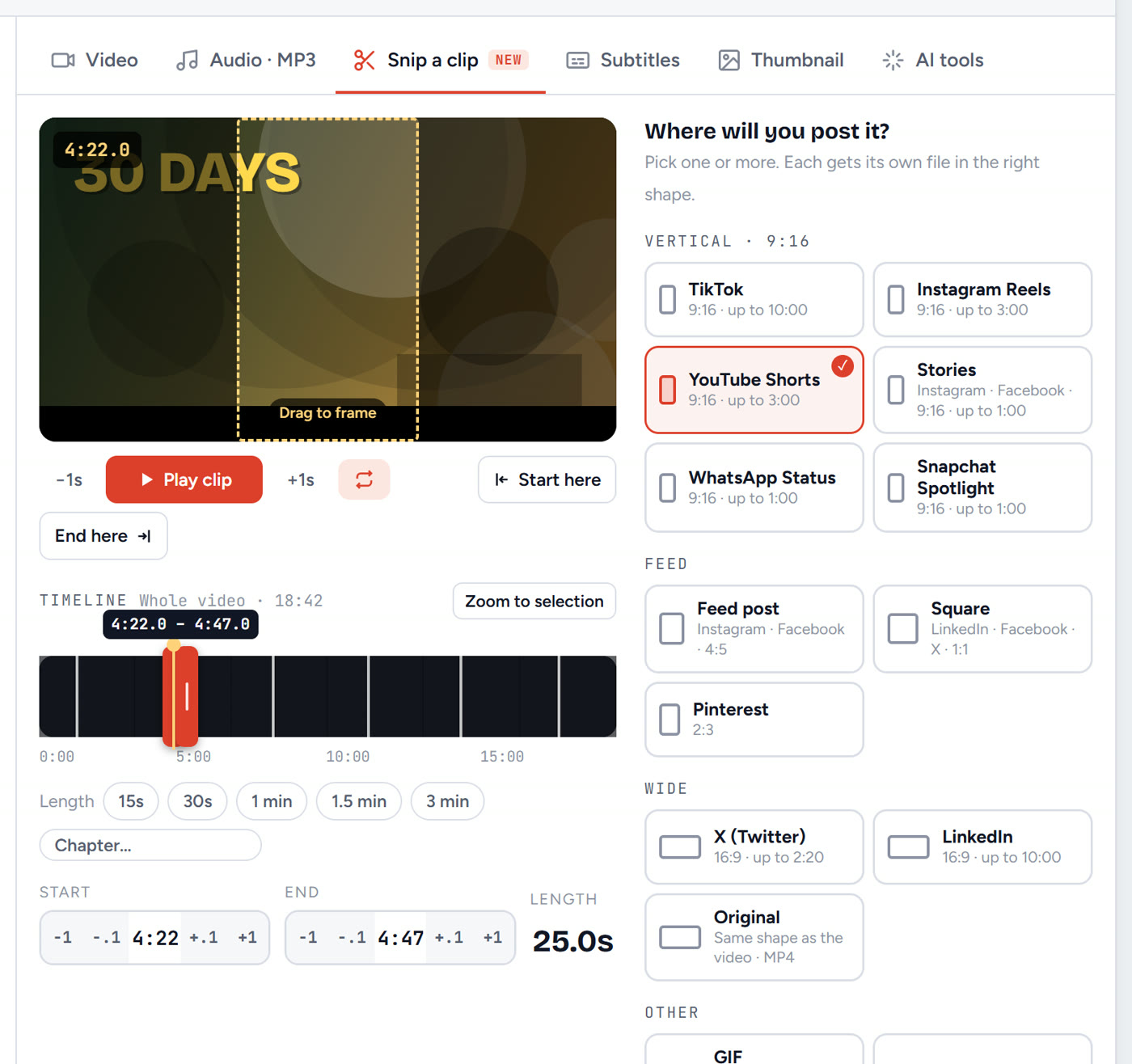
The clip cutter does the same job from its own page. PowerPoint can also trim a video, but trimming in PowerPoint keeps the full file inside your deck.
Insert the MP4 in PowerPoint
- Windows: Insert → Video → This Device, then pick the MP4 from Downloads.
- Mac: Insert → Video → Movie from File, then pick the MP4.
The video is now embedded in the file. It plays even with Wi-Fi off. Microsoft explains the options in Embed a video in PowerPoint.
Set how it plays
Click the video, open the Playback tab and set:
- Start: Automatically (plays when the slide appears) or When Clicked On.
- Play Full Screen if the video should fill the projector.
- Volume to Medium; room speakers are often louder than you expect.
Then press F5 and test it once, with Wi-Fi turned off, before the real thing.
Add captions to the video in PowerPoint
Captions help in loud rooms and for anyone in the audience who is hard of hearing. PowerPoint can show a caption file next to an inserted video:
- Get the captions as a .vtt file (SRT also works in newer versions) with the YouTube subtitle downloader.
- Click the video on the slide, open the Playback tab and choose Insert Captions.
- Pick the file. In Slide Show, turn captions on from the video's controls.
Microsoft explains the details in Add closed captions or subtitles to media in PowerPoint. If you cut only a part of the video in Step 4, the caption times will not match the clip, so add captions to full videos only.
Keep the presentation file small
A 1080p video can make your deck huge. Three ways to keep it light:
- Save only the clip you need (Step 4).
- Pick 720p instead of 1080p for small rooms.
- On Windows, use File → Info → Compress Media after you insert the video.
Google Slides and Keynote
- Google Slides: Insert → Video lets you search YouTube or pick a video from Google Drive. Both play online. For a talk without internet, download the deck as a PowerPoint file and add the MP4 there.
- Keynote on Mac: drag the MP4 onto the slide. Keynote handles H.264 MP4 files well.
Troubleshooting
| What you see | Why | Fix |
|---|---|---|
| "The video cannot be played" | AV1 or VP9 codec | Download again at 1080p or lower (H.264) |
| Black box, sound only | Old graphics driver or codec | Use 720p H.264 and update Windows or Office |
| Online video shows "Video unavailable" | Removed, private or blocked by the network | Use the offline MP4 method |
| The deck is too big to email | Full video embedded | Save only a clip, or use Compress Media |
| No sound on the projector | Audio goes to the laptop speaker | Pick the projector or HDMI output in sound settings |
Can you use any YouTube video in a presentation?
For a class or an internal meeting, people often show videos they do not own, but the safe rule is the same as anywhere: use your own videos, Creative Commons videos, or videos the creator lets you reuse. YouTube's Terms of Service only allow downloads where YouTube shows a download option or the owner agrees. If in doubt, embed the online video, so the creator's player and credits stay on screen.
Questions
How do I put a YouTube video in PowerPoint without internet?
Download the video as an MP4 (1080p or lower, H.264), then in PowerPoint use Insert → Video → This Device on Windows or Movie from File on Mac. The video is stored in the deck and plays offline.
How do I embed a YouTube video in PowerPoint?
Copy the video link, then use Insert → Video → Online Video in PowerPoint and paste it. The embedded video streams from YouTube, so you need internet when you present.
Why will my video not play in PowerPoint?
Most often the file uses the AV1 or VP9 codec, which PowerPoint may not play. Download it again as MP4 at 1080p or lower, which uses H.264.
Can I put only part of a YouTube video in PowerPoint?
Yes. Save only the part you need with a clip cutter, or use Trim Video in PowerPoint. Saving just the clip keeps the deck much smaller.
Does this work in Google Slides?
Google Slides plays YouTube and Google Drive videos online only. For an offline talk, download the deck as PowerPoint and insert the MP4 there.