YouTube to Ringtone: 30-Second Ringtone for iPhone & Android
YouTube to ringtone: cut a 30-second MP3 from a YouTube video, then set it with GarageBand on iPhone or in Android settings. Tested steps with screenshots.
 Simone MatthewContent & video creator at Tube Snip· · 5 min read
YouTube to ringtone in short: cut the part you want from the YouTube video as a 30-second MP3, then set it as your ringtone: with GarageBand on an iPhone, or from Settings → Sound & vibration → Ringtone on Android. Thirty seconds is the most an iPhone ringtone can be, according to Apple, so cutting exactly that part first saves a step.
Below are the steps with screenshots from our test, the iPhone and Android methods, and where to find sounds you're allowed to use as a ringtone.
What you need to turn a YouTube video into a ringtone
| iPhone | Android | |
|---|---|---|
| File type | MP3 or M4A, turned into a ringtone in GarageBand | MP3 |
| Longest ringtone | 30 seconds (Apple) | No fixed limit, but short works best |
| Free app needed | GarageBand (from Apple) | None |
| Where you set it | GarageBand → Share → Ringtone → Use sound as | Settings → Sound & vibration → Ringtone |
Use a sound you're allowed to use: your own video or song, a Creative Commons video, or a track from the YouTube Audio Library. A ringtone made from someone else's music is a copy of their work, so stick to sounds that are yours or free to use.
How to make a ringtone from a YouTube video, step by step
Copy the YouTube video link
Open the video on YouTube and copy its link: Share → Copy link in the app, or the address bar on a computer.
Paste it into the YouTube clip cutter
Open the YouTube clip cutter, paste the link and click Fetch video. "Video link detected" appears when the link is valid.

Pick the 30 seconds you want
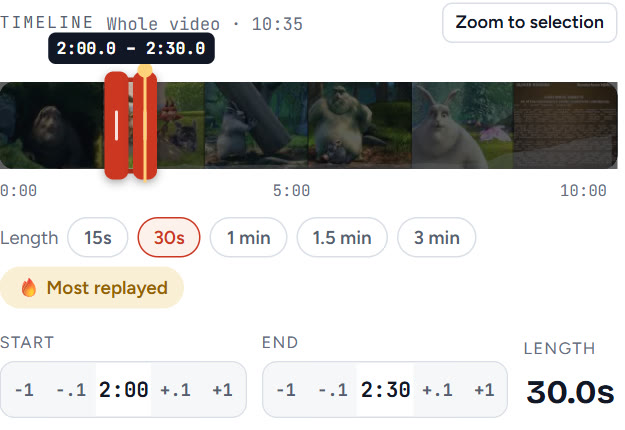
Tap 30s under Length, then drag the selection on the timeline to the part you want, or type the Start and End times. Press Play clip to hear it before you save. For a ringtone, start just before the catchiest part, so it's recognisable from the first ring.
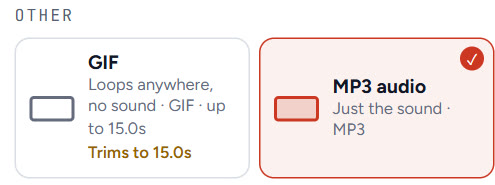
Choose MP3 audio
Under Where will you post it?, scroll to Other and tick MP3 audio ("Just the sound"). Untick the video formats if any are ticked, so you only get the MP3.
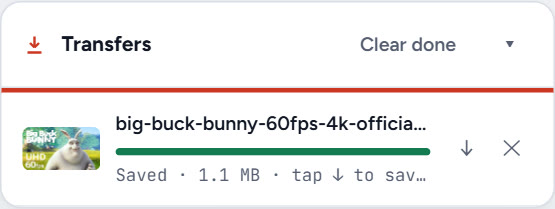
Save the MP3
Click Save clip. The clip cutter first fetches only the part you picked, then makes the MP3; the Transfers box says Saved when it's done.
Move the MP3 to your phone
If you made it on a computer, send it to your phone: AirDrop or the Files app on an iPhone, a USB cable or Google Drive on Android. If you made it on the phone itself, it's already in your downloads.
How to set a YouTube song as your ringtone on iPhone
Apple's official way uses the free GarageBand app:
- Open GarageBand, touch and hold its icon and tap Create New Audio Recording.
- Tap the Tracks button, then the Loops Browser button.
- Tap Files, then Browse items from the Files app, and pick your MP3.
- Drag the file all the way to the left of the track. Trim it if needed: ringtones can be up to 30 seconds long.
- Go to My Songs, select your song, tap Share and choose Ringtone.
- Name it and tap Export, then tap Use sound as and choose Standard Ringtone (or assign it to one contact).
If the clip is longer than 30 seconds, GarageBand offers to shorten it for you when you export.
Newer iPhones: with iOS 26, several reviewers, including AppleInsider, report a shortcut: open a short MP3 or M4A in the Files app, tap Share and choose Use as Ringtone. Apple's own guide still describes the GarageBand method, so use that if you don't see the option.
How to set a YouTube song as your ringtone on Android
- Copy the MP3 to your phone. Google's Pixel help suggests connecting the phone to a computer with a USB cable and copying the MP3 into the Ringtones folder.
- Open Settings → Sound & vibration → Ringtone (on some phones it's called Phone ringtone).
- Pick your new sound from the list and tap Save.
Some Android phones also show a + or Add ringtone option in that list, so you can pick the MP3 straight from your files. To give one person their own tone, open Contacts, choose the contact and set a Contact ringtone.
How to make a song your ringtone (without YouTube)
The same steps work for any song file you own: start at Step 6 with your MP3. On iPhone, GarageBand can also use songs downloaded in Apple Music, but Apple notes that protected songs can't be made into ringtones.
Where to find free sounds for a ringtone
- YouTube Audio Library: free music and sound effects in YouTube Studio. Download the MP3 and start at Step 6. Check each track's licence in the library.
- Creative Commons videos: filter YouTube search by Creative Commons and use the clip cutter as above.
- Your own videos: a voice line, a laugh or a jingle from your channel makes a ringtone nobody else has.
Need the whole song instead of a 30-second part? Use the YouTube to MP3 converter, then trim it in GarageBand. Our guide on downloading music from YouTube covers the MP3 settings.
Troubleshooting
| What you see | Why | Fix |
|---|---|---|
| GarageBand says the ringtone is too long | It's over 30 seconds | Tap Continue to shorten it, or cut a 30s clip first |
| The song is greyed out in GarageBand | It's protected or not downloaded | Use your own MP3 instead |
| "Use as Ringtone" isn't in the Files share menu | Your iOS version doesn't have it | Use the GarageBand method |
| The new ringtone isn't in the Android list | The MP3 isn't in the Ringtones folder | Copy it into Ringtones, or use the + option if your phone has it |
| The ringtone starts with silence | The clip starts too early | Cut it again with a later Start time |
| "You reached the downloads limit this hour" | Free downloads have an hourly limit | Wait an hour, or sign in for higher limits |
What we'd do
Pick a sound you're allowed to use, cut exactly 30 seconds as MP3 with the clip cutter, and set it with GarageBand on iPhone or the Ringtone settings on Android. Start the clip right on the best moment, so people know it's your phone from the first ring.
Questions
How do I turn a YouTube video into a ringtone?
Cut the part you want as a 30-second MP3 with a clip cutter, move it to your phone, then set it with GarageBand (Share → Ringtone) on iPhone or in Settings → Sound & vibration → Ringtone on Android.
How long can an iPhone ringtone be?
Up to 30 seconds, according to Apple. GarageBand offers to shorten longer clips when you export them as a ringtone.
Can I make a YouTube song my ringtone on Android?
Yes. Save the part as MP3, copy it into the Ringtones folder (or use the + option if your phone has one), then choose it in Settings → Sound & vibration → Ringtone.
Do I need iTunes to make an iPhone ringtone?
No. Apple's current method uses the free GarageBand app on the iPhone. On iOS 26 some users also see a Use as Ringtone option in the Files share menu.
Is it legal to use a YouTube song as a ringtone?
Use sounds that are yours, Creative Commons or from the YouTube Audio Library. Turning someone else's song into a ringtone copies their work, so do that only with permission.